How to Set a Video as Your Wallpaper on Mac
How to set a video as your Mac wallpaper — why System Settings won’t take a video file, and how to use an MP4 or a YouTube link instead.
Setting a video as your Mac wallpaper sounds like it should be a drag-and-drop into System Settings. It isn’t — macOS only takes still images and Apple’s own moving wallpapers. Here’s the part that actually works.
Short answer: macOS won’t accept a video file in Wallpaper settings, so you use a live wallpaper app. For a local video file, use an app that plays your own clips, like the free ScreenPlay or paid Backdrop. If your video is on YouTube, Tayu can run it straight from a YouTube link with no file to keep.
Why System Settings won’t take a video
Open System Settings → Wallpaper and your only choices are still images and Apple’s built-in dynamic and aerial wallpapers. There’s no field to drop an MP4 or point at a video file, so a custom video always goes through a third-party app.
Route 1: play a video file with a wallpaper app
If you already have a clip — something you made, a 4K loop you downloaded, or an export from a project — use a live wallpaper app that accepts your own video files. ScreenPlay is a free, open-source option, and Backdrop is a polished paid one. The steps are the same idea in each:
- Install a live wallpaper app that supports local video files.
- Add your MP4 and set it as the desktop background.
- Choose whether it plays sound, and set it per display if you use more than one screen.
A local file plays offline, but you’re responsible for it: storage, keeping it around, and checking the video’s license if it isn’t yours.
Route 2: skip the file with a YouTube link
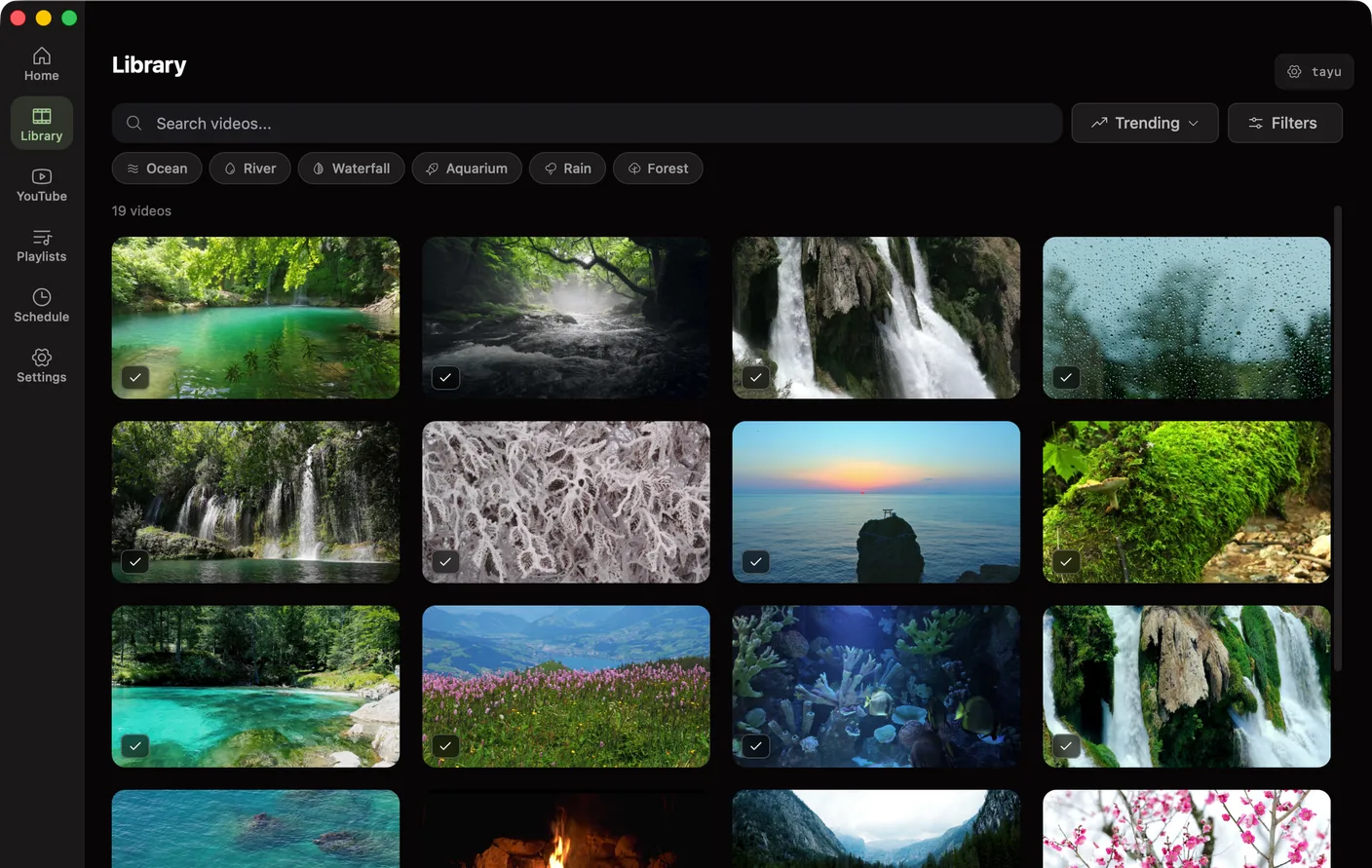
If the video lives on YouTube — or you’d rather not manage a file — you can run it straight from the link. Tayu takes a YouTube URL and plays it as your wallpaper, with optional ambient sound and scheduling, and no download to store. The catch is that it streams, so it needs a connection. Full steps are in how to set a YouTube video as wallpaper on Mac.
Tayu is free to use — the complete 4K scene library, ambient sound, and YouTube wallpapers cost nothing. Pro adds playlists, Flow, and scheduled scenes for $9.99 once.

Tayu — a healthy rhythm for desk work
Which route to choose
- You have a specific MP4 file → a video-wallpaper app like ScreenPlay or Backdrop.
- Your video is on YouTube, or you want sound and schedules → Tayu.
FAQ
Can I set a video file as my wallpaper on Mac without an app?
No. System Settings → Wallpaper only accepts still images and Apple’s built-in dynamic and aerial wallpapers. To run an MP4 or any video file as your desktop background you need a live wallpaper app.
What video format works as a Mac live wallpaper?
Most live wallpaper apps accept common video formats like MP4 — check the specific app for details. If you want a particular clip, a YouTube link is often the easiest route, since there’s no file to manage.
Will a video wallpaper keep playing offline?
A local video file plays offline. A YouTube wallpaper streams, so it needs a connection, while downloaded library scenes in an app like Tayu play fully offline.
Does a video wallpaper play sound?
You choose. Most people keep a video wallpaper muted, and apps like Tayu can add matching ambient sound separately so you control the picture and the sound independently.
A calmer live wallpaper for Mac
Tayu pairs 4K nature scenes with ambient sound, YouTube wallpapers, playlists, schedules, and AI scene switching for focused work and small breaks.