How to Set a Live Wallpaper on Mac
How to set a live wallpaper on Mac — the free built-in dynamic and aerial wallpapers, and how to use a YouTube link with a live wallpaper app.
A live wallpaper is a desktop background that moves — a slow aerial shot, a looping 4K scene, or a video you like. macOS includes a few of these for free, and a live wallpaper app adds the rest, including your own videos and YouTube links. Here’s how to do both.
Short answer: For free built-in motion, open System Settings → Wallpaper and pick a Dynamic or Aerial wallpaper. To use a YouTube video or a ready-made 4K scene, install a live wallpaper app like Tayu (for your own video files, an app like ScreenPlay) — macOS can’t run custom video on its own.
Option 1: the live wallpapers built into macOS
Before installing anything, macOS already has some motion built in:
- Open System Settings.
- Click Wallpaper in the sidebar.
- Choose a Dynamic wallpaper (it shifts with the time of day) or an Aerial screensaver-style video.
This is free and takes seconds. The limit is that you’re stuck with Apple’s set — there’s no way to add your own video, a 4K scene from elsewhere, or a YouTube link.
Option 2: a live wallpaper app for your own content
When you want a specific 4K scene or a YouTube video as your background, you need a live wallpaper app. Tayu is a native Mac app built for this, and the flow is short:
- Download and open Tayu. It’s free.
- Pick a scene or paste a YouTube link. Choose from the built-in 4K library, or paste a YouTube URL to use that video as your wallpaper.
- Set the sound. Keep it silent, or use the matching ambient sound that comes with library scenes.
- Group or schedule it. Add scenes to a playlist, or schedule them to change through the day.
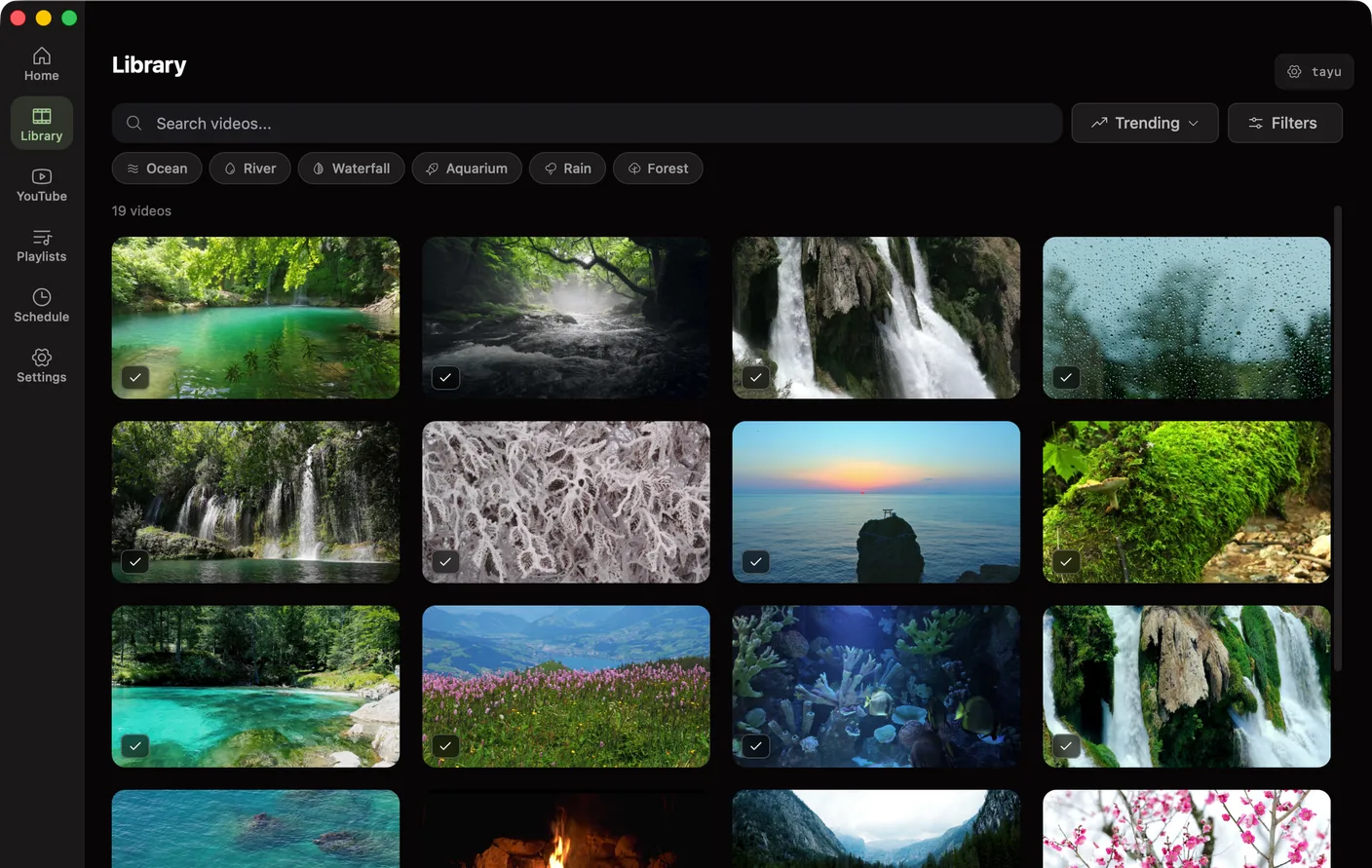
The complete 4K scene library, ambient sound, and YouTube wallpapers are free to use; playlists, Flow, and scheduled scenes come with Pro. If you’re comparing options first, see the best live wallpaper apps for Mac.
Things worth knowing
Battery
Moving wallpapers use a little more power than a still image, so it’s worth pausing playback or switching to a still scene when you’re trying to stretch a charge.
Multiple displays
A live wallpaper app generally lets you choose which screen a wallpaper runs on, so you set each display separately rather than in System Settings.
Sound
Built-in macOS wallpapers are silent. If you want sound with the picture, that’s where an app like Tayu differs — scenes can carry matching ambient sound, and a YouTube wallpaper can play with or without audio.

Tayu — a healthy rhythm for desk work
FAQ
What is a live wallpaper on Mac?
A live wallpaper is a desktop background that moves — a looping video or animated scene — instead of a still image. macOS includes a few (its dynamic and aerial wallpapers), and a live wallpaper app like Tayu adds moving 4K scenes and YouTube videos with matching ambient sound.
Does macOS have live wallpapers built in?
Yes, in a limited way. System Settings → Wallpaper includes dynamic wallpapers that shift with the time of day and slow aerial videos. They’re free, but you can’t add your own video or a YouTube link to them.
How do I use my own video as a live wallpaper on Mac?
macOS can’t do that on its own, so you use a live wallpaper app. Apps like ScreenPlay play your own video files; Tayu runs a 4K scene or a YouTube link as the desktop background.
Are live wallpapers free on Mac?
The built-in dynamic and aerial wallpapers are free. Third-party apps vary — Tayu, for example, is free to use, with a $9.99 one-time upgrade for Pro.
Do live wallpapers drain the battery?
A moving wallpaper uses a little more power than a still image, so most apps let you pause playback or switch to a still scene on battery. On a charger the difference is small.
A calmer live wallpaper for Mac
Tayu pairs 4K nature scenes with ambient sound, YouTube wallpapers, playlists, schedules, and AI scene switching for focused work and small breaks.