How to Set a YouTube Video as Wallpaper on Mac
Yes, you can use a YouTube video as your Mac wallpaper — via a live wallpaper app, a saved local video, or a browser workaround. Here are the steps that work.
There is usually one YouTube video you keep coming back to — a lofi stream, an aquarium, rain on a window, a slow walking tour. At some point you want it as your desktop background instead of another open tab. But dragging a YouTube link into System Settings does nothing, and macOS quietly refuses.
Short answer: Yes, you can set a YouTube video as your wallpaper on Mac — but macOS won’t do it on its own. The reliable way is a live wallpaper app like Tayu that takes a YouTube link and runs it as your actual desktop background. You can also save the video as a local file for a video-wallpaper app, or keep YouTube playing in a window behind your icons — both are clunkier and break easily.
Why macOS can’t do this on its own
Open System Settings → Wallpaper and the only things you can choose are still images and Apple’s own dynamic and aerial wallpapers. There is no field for a video file, and certainly none for a YouTube URL. macOS has no built-in way to run an arbitrary video as the desktop background, so every method below relies on a third-party app or a workaround.
Four ways to set a YouTube video as your Mac wallpaper
1. A live wallpaper app (recommended)
You paste the YouTube link into the app, and it plays the video as your live desktop background — behind your icons, full screen, muted or with sound. This is the cleanest option because the video is genuinely your wallpaper — it sits behind your icons and windows as the desktop background, not a separate window you have to keep on top. Tayu is a native Mac app built for exactly this, and it can also schedule wallpapers and group them into playlists.
2. Download the video and use a video-wallpaper app
You download the YouTube video as an MP4 and point a local-video wallpaper app at the file. It works offline once saved, but it is more work: extra steps, storage space, a re-download whenever the video updates, and you should check the video’s license before saving a copy. Good for one fixed clip, awkward for swapping videos often.
3. Keep YouTube playing in a window behind your icons
The free, no-app route is to open YouTube in a borderless browser window or on a second display and push it behind everything. It costs nothing, but it is not really your wallpaper: clicking the desktop, opening apps, or entering Mission Control breaks the illusion, you can’t place icons on top, and you have to set it up again after every restart.
4. Apple’s built-in dynamic wallpapers
Not YouTube, but worth knowing: if you only want gentle motion, macOS ships aerial and dynamic wallpapers under System Settings → Wallpaper. There is no way to add your own video or a YouTube link, so this is a fallback only if a specific video isn’t the point.
How to set a YouTube video as wallpaper with Tayu
- Download and open Tayu. It’s free, and runs natively on macOS.
- Add a YouTube video. Paste the video’s URL into Tayu and it becomes a wallpaper you can select — the same idea as picking a scene from the built-in library.
- Choose how it sounds. Keep the video muted as a silent background, or let it play. Tayu’s own library scenes also come with matching ambient sound if you’d rather control audio separately.
- Add it to a playlist, or schedule it. Drop the YouTube wallpaper into a playlist, or have it appear at certain times of day so your desktop shifts as you move through work.
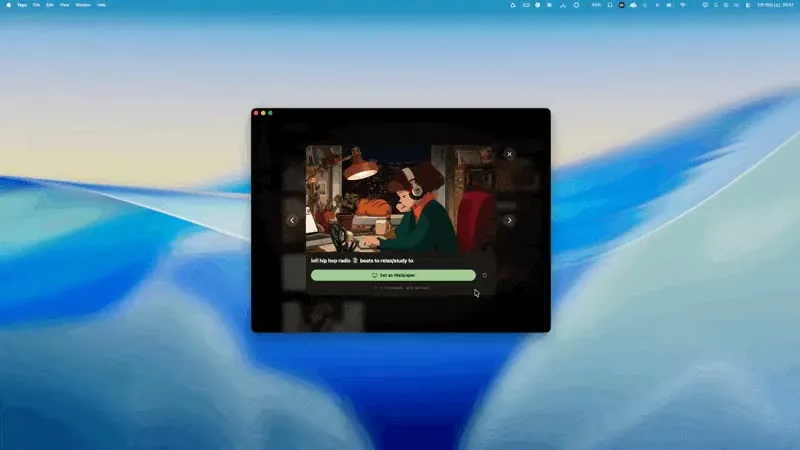
The complete 4K library and YouTube wallpapers are free to use, with no time limit. Playlists, Flow, and scheduled scenes come with Pro, a $9.99 one-time purchase.
Things to keep in mind
The video has to stay available
A YouTube wallpaper streams from YouTube, so it needs an internet connection, and if the uploader removes the video or makes it private it will stop playing. Tayu’s downloaded library scenes, by contrast, keep playing fully offline.

Tayu — a healthy rhythm for desk work
Battery and power
A moving video background naturally uses a little more power than a still image. On battery it’s easy to pause the wallpaper or switch to a still scene when you want to stretch a charge, then turn it back on when you’re plugged in.
Copyright and personal use
Using a video as your own private desktop background is one thing; downloading, re-uploading, or redistributing someone else’s video is another, and copyright and platform terms still apply. If you go the saved-file route, check the video’s license first.
Sound
Decide per wallpaper whether it plays audio. Most people keep the wallpaper muted and run a separate ambient sound, so the picture and the sound can be adjusted independently.
FAQ
Can macOS set a YouTube video as wallpaper without an app?
No. System Settings → Wallpaper only accepts still images and Apple’s own dynamic and aerial wallpapers. There is no field for a video file or a YouTube link, so you need a live wallpaper app to run a video as your desktop background.
Can a YouTube video wallpaper play sound?
Yes, that is your choice. You can keep the wallpaper muted as a silent background, or let it play. Many people mute the video and use a separate ambient sound instead so they can control it independently.
Does it work with more than one display?
A live wallpaper app generally lets you choose which screen a wallpaper runs on, so on a multi-monitor setup you set the wallpaper per display in the app’s settings rather than in System Settings.
Is Wallpaper Engine available on Mac?
No. Wallpaper Engine is a Windows app and there is no native macOS version, so Mac users need a different tool. Tayu is a native Mac live wallpaper app that can take a YouTube link directly.
A calmer live wallpaper for Mac
Tayu pairs 4K nature scenes with ambient sound, YouTube wallpapers, playlists, schedules, and AI scene switching for focused work and small breaks.