10 Video Call Background Ideas That Aren't a Blurred Wall
Ten ways to fix what's behind you on a video call — camera height, the light source, a real depth cue, a plant at the right distance — plus when a virtual background is still the right answer.
Blur is the default because it's one click, but it also flattens you into a cutout and chews CPU on every call. Most of what makes a background look bad is fixable in the physical room in under ten minutes, and the fixes stay fixed. These are ordered from fastest to most involved.
Short version: the three things that matter most are light in front of you rather than behind, a camera at eye level, and at least 1.5 m of depth between you and whatever is behind. Fix those and the background stops needing to be hidden. Use blur only when the room genuinely can't be controlled — a shared space, a hotel, someone else's house.
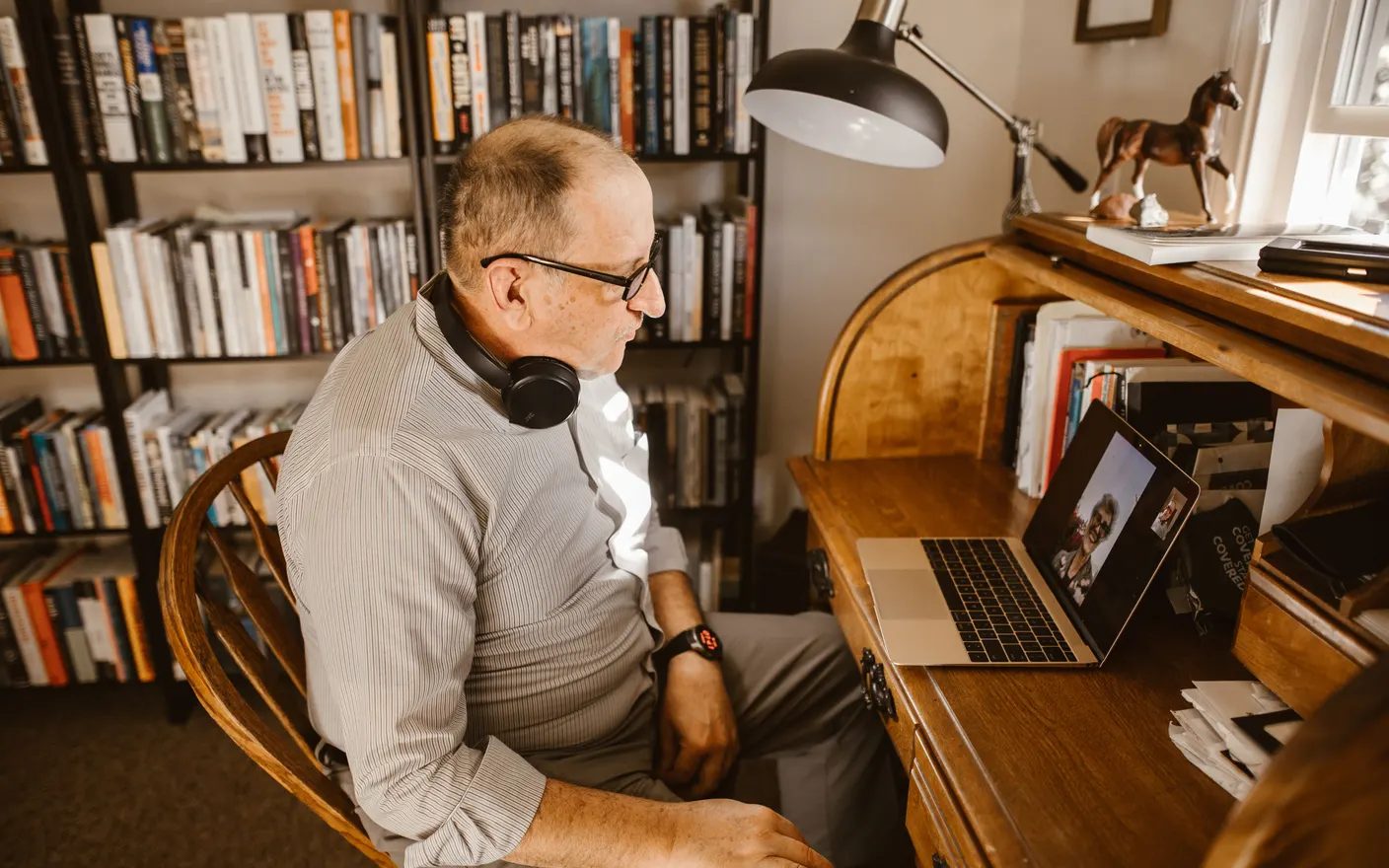
1. Put the light in front of you, not behind — a window behind your head turns you into a silhouette
A camera exposes for the brightest thing it sees. Sit with a window behind you and it exposes for the window, leaving you as a silhouette. Turn 180° so the window is in front, or 45° to the side for softer modelling. This costs nothing and fixes more than any background setting. If the only window is behind you, close the blind and use a lamp in front instead.
2. Raise the camera to eye level — a laptop on the desk is filming up your chin
A laptop sitting flat puts the lens roughly 25–30 cm below your eyes, which points it at your ceiling and up your nose. Anything that lifts the laptop 12–15 cm fixes it: a stand, a stack of books, a shoebox. The ceiling drops out of frame and the background becomes whatever is behind you at head height, which is the part you can actually decorate.
3. Get 1.5 m between you and the wall — depth is what makes a background look intentional
With your back against a wall, the wall catches the same light you do and sits at the same distance, so it reads as a flat backdrop no matter what's on it. Move the desk 1.5–2 m out and the wall drops out of your lamp's reach, goes darker, and stops merging with you — that separation is what blur is trying to fake. Don't expect it to go optically soft: a webcam's sensor is small enough that nearly the whole room stays in focus at once, which is exactly why the blur has to be done in software. In a small room, angling the desk diagonally across a corner buys you a metre of diagonal depth for free.
4. Use one warm 2700–3000K lamp, not the ceiling light — overhead light makes eye sockets dark
Ceiling lights come from directly above, which drops shadows into your eyes and under your nose. A single lamp at roughly face height, one to two metres in front and slightly off to one side, replaces that with even light. Warm white around 2700–3000K in the evening looks natural on camera; neutral 4000K reads better in daylight.
5. Put one object at mid-distance — a plant at 1 m does more than a full shelf at 3 m
A background reads as a room, rather than as a wall, when something sits between you and the back of the frame. One plant, one lamp, or one chair placed about a metre behind your shoulder and just out of centre is enough. More objects than that start competing for attention with your face, which is the actual subject.
6. Clear the band behind your head — most of the room was never in frame anyway
A webcam sees a narrow slice of the room: at a typical desk distance, that's roughly a 1.5 m wide band behind your shoulders and not much above head height. Everything else you were worried about is outside the picture. You don't need to tidy the room. You need to tidy that band. Take a screenshot of your own preview once and you'll see exactly which shelf is in shot.
7. Turn off the ring light ring — a visible ring in your glasses undoes the effort
Ring lights are cheap and effective, but at close range they reflect as a bright circle in glasses and produce a hard ring catchlight in the eye. Moving the light 60–90 cm back and slightly above eye level keeps the fill and loses the artefact. A cheap diffuser, or just bouncing the light off a white wall, does the same thing.
8. Frame yourself with headroom, not centred — leave about 10% of the frame above your head
Centring your face vertically leaves a large empty area above you and cuts your shoulders out, which is what makes a lot of calls feel oddly cropped. Aim for your eyes at roughly the top third of the frame and about a hand's width of space above your head. Your shoulders should be visible, because that's what makes gestures legible.
9. Give the second monitor something calm to show — it's in frame more often than you think
On a two-monitor setup the second screen is frequently in shot, and what's on it is either a bright spreadsheet or a static desktop. A slow, low-contrast scene there reads as part of the room rather than as a second thing to look at. Tayu runs a live scene or a YouTube video as the desktop and can drive each display separately, so the on-camera monitor stays calm while the working one doesn't.

Tayu — a healthy rhythm for desk work
10. Use blur only when the room isn't yours — it costs CPU and looks worse than a fixed room
Background blur runs a segmentation model on every frame; on older laptops that's a measurable share of CPU during an hour-long call, and it's why fans spin up. It also clips hair, headsets, and anything you hold up. Keep it for cafés, hotels, and shared rooms — the situations where you genuinely can't change what's behind you.
How to choose
- You look dark on camera → light in front, not behind. Nothing else will fix it.
- The angle feels off → raise the laptop 12–15 cm before touching anything else.
- The background looks flat → that's depth, not decor. Move the desk away from the wall.
- The room isn't yours → blur or a virtual background is the correct answer, not a failure.
A calmer live wallpaper for Mac
Tayu pairs 4K nature scenes with ambient sound, YouTube wallpapers, playlists, schedules, and AI scene switching for focused work and small breaks.